Why a Scanned PDF Has No Text to Copy
A PDF can look full of words while containing no characters at all. If every page is a photograph of a document, copy and search cannot work until optical character recognition creates a new text layer, and that layer still needs review.
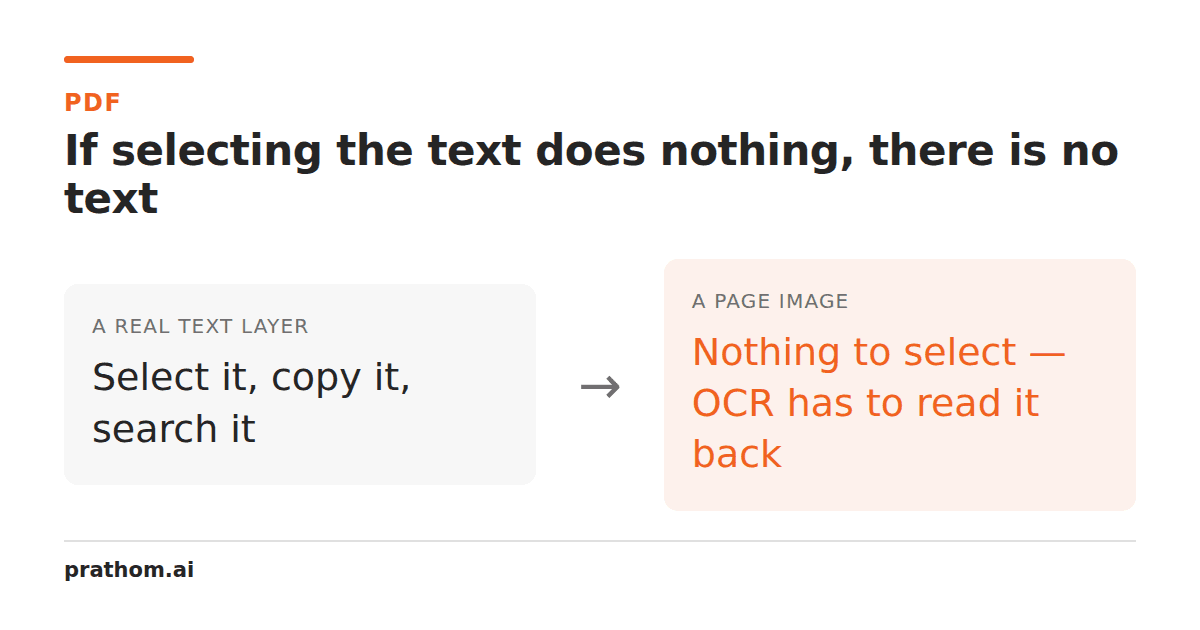
Try selecting a sentence in a PDF. If the selection follows individual letters or words, the file has a text layer. If the whole page behaves like one picture, or nothing can be selected at all, you are looking at a scan. The page looks identical to a person, but the computer is being shown pixels instead of characters.
That distinction explains why copying from one PDF works perfectly and copying from another produces nothing. It also explains why a search for a name, invoice number, or clause can fail even when the phrase is plainly visible on screen.
The two kinds of PDF text
A digitally created PDF usually stores glyphs positioned on a page. The letters may not be arranged as ordinary paragraphs, but there is at least a character layer for an extractor to read. A scan is different: a scanner photographs or renders the page and stores the result as an image object. The apparent letters are patterns of pixels.
There is a middle case too. A document may contain a text layer that is incomplete, hidden, or badly ordered, with a scanned image underneath. Some pages can copy cleanly while others return nothing. A form can also contain text drawn into the background image alongside a few real fields. Testing one page is useful, but testing a representative page from every section is safer.
What OCR actually does
Optical character recognition does not recover the original document. It looks at pixels, identifies shapes that resemble letters, and writes a new text layer or text file based on its best reading. That reading can be excellent for a clean, high-resolution typed page and unreliable for a skewed receipt, a fax, handwriting, a table, or a page photographed in poor light.
The result has two separate qualities: character accuracy and reading order. OCR may recognize every word but put the right column before the left. It may preserve a line break that was caused by the edge of a scan, or join two columns that were meant to be read separately. A text file can therefore contain all the right words in the wrong sequence.
The PDF to Text toolis useful when you want the page structure reconstructed and the input is a PDF. It explains the difference between a text-layer PDF and a scan instead of treating an empty extraction as success. For a plain output, PDF to TXTgives the text layer a simpler destination. If the source is a photograph or a single image rather than a PDF, Image to Textis the more direct route.
How to check an extracted result
Do not judge OCR from the first paragraph alone. Search for a name, a long number, a date, and a word near the bottom of a page. Those tests catch different errors: similar-looking characters, dropped punctuation, incorrect columns, and pages that were never processed.
Compare headings and lists separately from body text. OCR often flattens a heading into the line below it or turns a numbered list into an ordinary paragraph. Tables are especially dangerous because their visual columns do not necessarily become tab-separated data. If the output will feed a spreadsheet, compare row boundaries and totals rather than trusting a clean-looking text file.
Keep the original scan next to the extracted file. The original is the evidence; OCR is a working copy. For a legal, financial, medical, or archival workflow, search the output and then visually confirm every value that matters. A one-character error in an account number can be more serious than a paragraph with a missing comma.
Why a better scan often beats a clever setting
OCR quality starts with the pixels. A straight, evenly lit page with sufficient resolution is easier to recognize than a tilted photograph with shadows, compression blocks, or a background pattern. Crop away irrelevant desk space, but do not crop margins that contain page numbers or notes. If a page is upside down, rotate it before asking the recognizer to read it.
The realistic promise is not “turn every scan into the original Word file.” It is “create a searchable, useful reading copy and show you where its limits are.” Once you know which kind of PDF you have, you can choose a text-layer extractor or OCR intentionally and spend your review time on the parts machines are most likely to misunderstand.