How to Fix Line Breaks After Copying From a PDF
Text copied out of a PDF arrives broken at the end of every visual line, with words split across those breaks by hyphens that were never in the original. The reason is that a PDF does not contain paragraphs at all, and knowing that tells you exactly which repairs are safe.
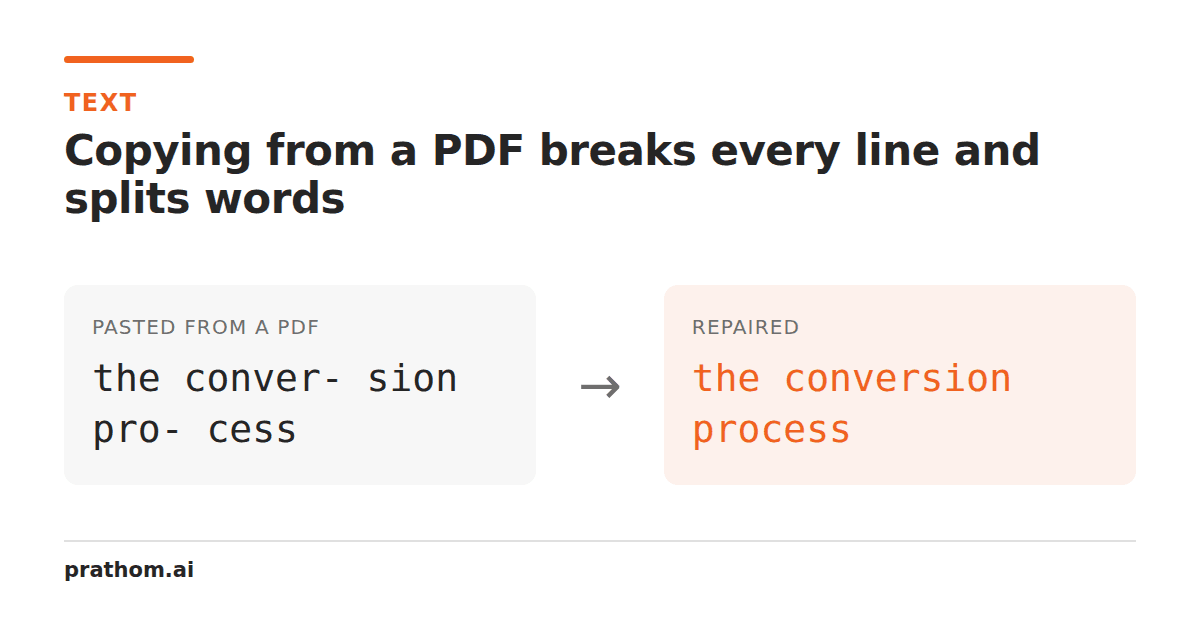
You copy three paragraphs out of a PDF and paste them somewhere. What arrives is
broken at the end of every line, with words like quar-and terssplit across
two of them.
This is not a bug in the PDF or in your reader. It is a consequence of what a PDF file actually is.
A PDF does not contain paragraphs
A Word document stores paragraphs, and the line breaks you see are computed at display time from the paragraph text and the current page width. Resize the window and they move.
A PDF stores the opposite: the finished positions. It is a description of marks on a fixed-size page — this glyph at this coordinate, that glyph at that one. There is no paragraph object anywhere in the file.
When your reader copies text, it works out reading order from those coordinates and inserts a line break wherever the vertical position changed. Those breaks are faithful to the layout, which is the only thing the file records. The paragraph structure you want was destroyed when the document was typeset, and no copy operation can recover what is not there.
The hyphens have the same origin. Justified text is typeset by breaking long words
across lines, and the hyphen is inserted by the layout engine. It is not part of the
word. Copy it out and you get a hyphen in the middle of quartersthat was never in
the manuscript.
The two repairs, in the right order
Order matters here and getting it wrong is irreversible.
Repair hyphenation first, while the line breaks are still present. The pattern that
identifies a typesetter's hyphen is: a letter, a hyphen, a line break, a letter. That
is a highly specific fingerprint — quar-\nters— and it is almost never anything
else.
Join lines second.
If you join first, quar-\ntersbecomes quar- ters, and the fingerprint is gone.
Now you have a hyphen followed by a space in the middle of a sentence, which is
indistinguishable from ordinary punctuation. There is no rule that repairs it
afterwards.
What "join the lines" has to mean
Not all line breaks should go. A blank line between two blocks of text is the one piece of paragraph structure that usually does survive the export, because typesetters leave vertical space between paragraphs and the copy operation turns that into an empty line.
So the useful operation is: flatten breaks within each block, keep the blank lines between blocks. Removing every break produces one giant paragraph and throws away the only structure you had.
Our remove line breakstool does both in this order: hyphen repair before joining, and paragraph boundaries preserved by default. There is also a mode that flattens everything into one block, for when that is genuinely what you want.
The hyphen cases it gets wrong, honestly
The rule is a heuristic, and a heuristic on this pattern will occasionally be wrong. Two ways:
A real hyphen at a line end. If the source text contained well-knownand the
layout happened to break the line exactly at that hyphen, the repair joins it into
wellknown. This is rare — it requires a genuine compound to land precisely at a line
end — but it happens in long documents.
Numbers and ranges. pages 12-\n34should stay hyphenated. A rule matching only
letter-hyphen-break-letter handles this correctly, which is why the pattern is
specified in terms of letters rather than "any character". A tool using a looser
pattern will merge your page ranges.
For a long document, the practical check is to search the output for words your spellchecker flags. A wrongly joined compound is almost always a non-word, so the spellchecker finds exactly the cases the heuristic got wrong.
The other things that come along
Copying from a PDF often brings more than line breaks:
Non-breaking spaces, wherever the typesetter prevented a break — usually between a number and its unit, or after an abbreviation. They look like spaces and are not, so they break searches and comparisons later.
Ligatures. In many PDFs, fiand flare single glyphs. Well-behaved readers map
them back to two letters on copy; some do not, and you end up with a word containing
a character that is not ffollowed by i. Search for findand it will not match.
Soft hyphens, U+00AD, which render as nothing when no break occurs — so a word can contain one and look entirely normal.
Header and footer text interleaved into the body, because a page number sits at a vertical position between two lines of text and the reading-order algorithm has no way to know it is not part of the sentence.
The first three are all handled by the whitespace remover, which converts space-like characters to ordinary spaces and strips the zero-width ones — and deliberately leaves the zero-width joiner alone, since removing that breaks emoji and several Indic scripts.
The last one has to be fixed by hand, or with find and replaceif the running header is a consistent string. A regular expression matching a page number on its own line will clear most of them in one pass.
Doing it well the first time
If you control the source, copy from the original document rather than the PDF. All of this is a lossy-format problem, and the loss happened before you got involved.
If the PDF is a scan rather than real text, none of the above applies — there is no text to copy, and you need OCR, which is a different problem with different failure modes.
The short version
Repair hyphens before joining lines, never after. Keep the blank lines between paragraphs. Then check for invisible characters, because they came along too.