How to Open XPS Files When Windows Cannot Read Them
XPS files are fixed-layout documents, not damaged PDFs. Here is why Windows may refuse them, which viewer options are safe, and when converting XPS to PDF is the better handoff.
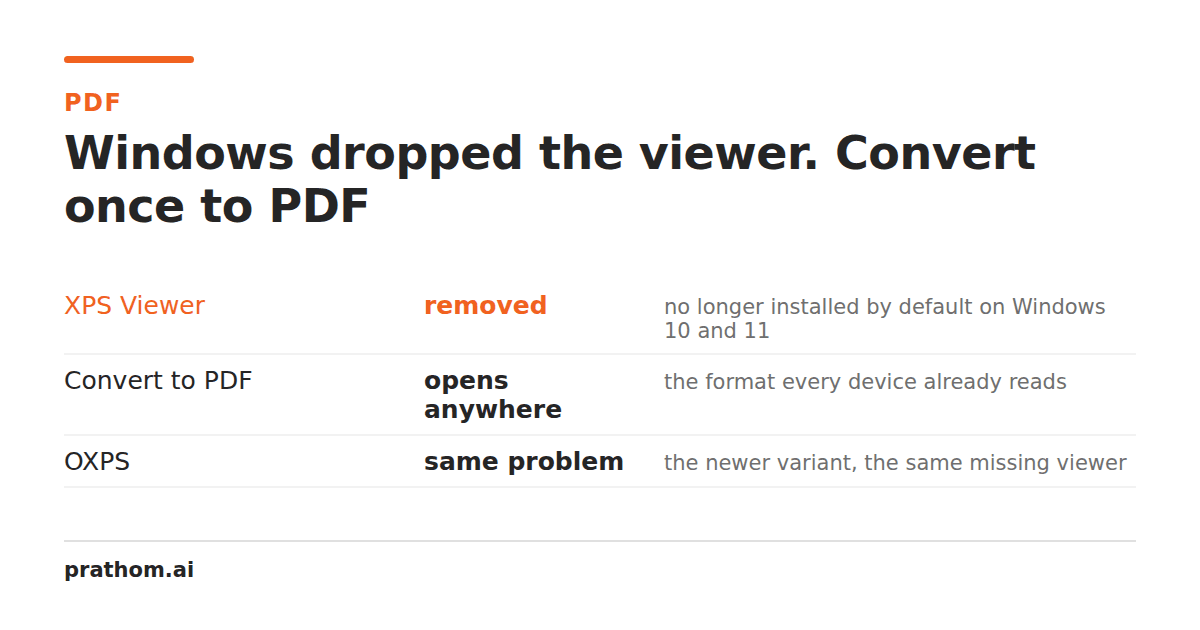
An XPS file can be perfectly valid and still appear impossible to open. The extension may be .xpsor .oxps, the file may have come from an old Windows print dialog, and a newer computer may show no application for it. In most cases the problem is compatibility, not corruption. XPS is a fixed-layout document format that was designed to preserve the position of text, vector shapes, and images on a page. PDF won the compatibility battle, so many current devices treat XPS as an optional or legacy format.
What an XPS file is
XPS stands for XML Paper Specification. It was introduced by Microsoft as a print-oriented alternative to PDF. An XPS document is a package containing XML page descriptions, fonts, images, and related resources. The page is described at fixed coordinates rather than reflowed like a web page or word-processing document.
OpenXPS is a related standardized revision and commonly uses the .oxpsextension. The two formats are close enough that many workflows describe them together, but the application opening the file still matters. Renaming an extension is not a conversion: it does not change the package or its page data.
Open it right now, without installing anything
If you only need to read the document — check an amount, find a date, confirm
which file this is — the fastest route is the online XPS viewer.
Drop the .xpsor .oxpsin and every page appears, with the text still
searchable. Nothing is installed, and it works on a Mac, a phone, or a managed
work computer where you cannot add Windows features.
That is the answer to the immediate problem. The rest of this page is about the two longer-term options: getting a real viewer onto the machine, and converting the file so it stops being a problem at all.
Try the built-in Windows option first
Windows still ships the reader; it just stopped installing it for you. XPS Viewer was included by default up to Windows 10 version 1803, and from that release onward it became an optional feature you have to add deliberately. Windows 11 works the same way — the viewer is not there on a fresh install, which is why a file that opened by double-clicking in 2015 now presents as an unknown file type.
To add it on Windows 10 or Windows 11: open Settings → Apps → Optional features → Add an optional feature, search for XPS Viewer, and install it.
This is the right route when you need to inspect the original locally or confirm a file is valid. It will not always be available: a managed work computer, a restricted server, or a device where an administrator has blocked optional components will refuse it. Some systems also distinguish between the older XPS format and OpenXPS, so a file that opens in one viewer may still need a different application or a conversion.
Off Windows there is no first-party reader, but there are real ones. Okular opens XPS on Linux and macOS, and MuPDF reads it too; on Linux, libgxpsships an xpstopdfcommand line tool. The catch is worth knowing before you install anything: Okular's XPS support is partial — layouts overlap or compress, and it fails on most .oxpsfiles. Nor does any mainstream browser open .xpsby double-clicking it.
So on a Mac or a Linux machine, converting is usually less work than finding a viewer that renders the file correctly — and if the file is OpenXPS, it is often the only thing that works.
Convert XPS to PDF for sharing
PDF is usually the better choice when another person needs to read, print, upload, or archive the document. The XPS to PDF converterturns the fixed pages into an ordinary PDF without asking the recipient to install an XPS component. It accepts XPS and the OpenXPS variant, and the output can be opened by browsers, phones, office software, and common PDF readers.
Keep the original XPS file before converting. A PDF is a delivery copy, not a replacement for the source package. The conversion is faithful to visible page geometry because both formats describe fixed page marks, but document properties, print-ticket settings, and some peripheral resources may not survive. Open the output before sending it, especially when it contains small labels, forms, or signatures.
A practical workflow
Start by checking the file extension and keeping a backup. If the file is sensitive, use a trusted local viewer or a conversion service whose retention policy you understand. Do not upload a document merely to change its filename; the bytes need to be decoded and written into a real PDF container.
Next, choose the destination format based on the next task. Use PDF for sharing and printing. If you need the words as editable data, first convert to PDF and then use a PDF to text tool, while remembering that text order can be imperfect in columns or pages containing only scans. If you need page images for a design or preview workflow, use PDF to JPGafter checking the resulting resolution.
After conversion, open several pages rather than only the first one. Check page count, text selection, page size, line wrapping, images, and the final page. A malformed or unusual XPS produced by a third-party printer driver may have been tolerated by its original viewer but rejected by a stricter reader. In that case, opening it in the original Windows environment and printing to PDF can be a useful fallback.
What conversion does not fix
Converting XPS to PDF does not create editable Word paragraphs, recover missing fonts, or repair information that was absent from the source. If the XPS contains a scan, the resulting PDF may contain image pages rather than searchable text. Use OCR only when searchable text is actually needed, and review the recognized text before relying on it.
It also does not remove sensitive content. A name printed on a page, an account number inside an image, or a signature drawn into the document is page content, not metadata. Review the PDF before sharing it and use a deliberate redaction workflow when the document contains confidential information.
For most people, the rule is simple: use XPS Viewer when you need to inspect the original locally, and convert XPS to PDF when the document needs to travel. PDF is not automatically better at preserving every source detail, but it is far more likely to open at the next step.