What "Compress PDF" Actually Removes, Preset by Preset
Nearly every "compress PDF" tool is Ghostscript underneath, running one of five named presets. Those presets do very different things, the differences are not what their names suggest, and the one that produced the smallest file also produced the worst-looking page. Here is all five measured on the same document.
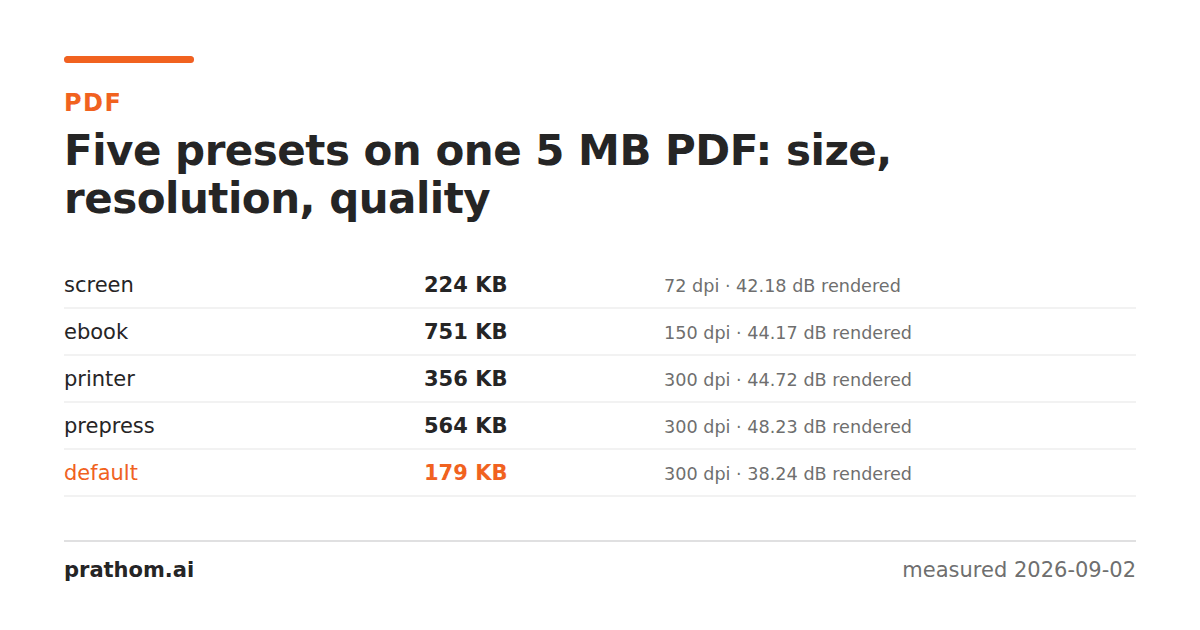
A two-page PDF containing one 300 DPI photograph and one 300 DPI page of text, 5,001,185 bytes, run through each Ghostscript preset. Then each output rendered back to a bitmap at 150 DPI and compared against the same render of the original.
| preset | size | % of original | image resolution | rendered quality |
|---|---|---|---|---|
/default | 183,505 B | 3.7% | 1600×1200 @ 300 dpi | 38.24 dB |
/screen | 229,024 B | 4.6% | 384×288 @ 72 dpi | 42.18 dB |
/printer | 364,945 B | 7.3% | 1600×1200 @ 300 dpi | 44.72 dB |
/prepress | 577,633 B | 11.5% | 1600×1200 @ 300 dpi | 48.23 dB |
/ebook | 769,524 B | 15.4% | 800×600 @ 150 dpi | 44.17 dB |
Read that table twice, because two of the rows are the opposite of what their names promise.
The two levers, and why they are independent
A preset controls two separate things and people usually only think about one.
Downsampling decides how many pixels each embedded image keeps. /screencuts
images to 72 DPI, /ebookto 150, /printerand /prepressto 300, and /default
leaves them alone. This is the destructive one: once the pixels are gone, no amount
of zooming brings them back, and the page looks soft on any screen better than a
2005 laptop.
Re-encoding decides how hard the remaining pixels are compressed as JPEG. This
is adjustable per preset too, and it is where /defaultdoes its damage.
The two are independent, which is how you get /defaultkeeping every pixel at
300 DPI and still producing the worst-looking output: it preserved the resolution
and crushed the JPEG quality inside. The pixel count is intact and each pixel is
less accurate.
That is worth stating plainly because it is the mistake almost every comparison of these presets makes, including the first version of this measurement. Checking the image dimensions inside the output PDF tells you what was downsampled. It tells you nothing about what the page looks like. The only way to know that is to render both and compare.
13 is the wrong default, and it is everyone's default
Search for how to compress a PDF and the overwhelmingly most common answer is
-dPDFSETTINGS=/ebook. In this test it was the largest output of the five —
2.1 times bigger than /printer— while also having half the resolution and
lower rendered quality. It lost on all three axes to a preset with a scarier
name.
The reason is that /ebookuses a relatively gentle JPEG quality alongside its
150 DPI downsampling, and /printeruses a similar quality at 300 DPI on content
that compresses well. There is no rule of thumb that predicts this; it depends on
what is in the document. It does mean that the received wisdom is not reliable, and
that trying two presets on your actual file takes thirty seconds.
Which to use
/printer is the best general answer for a document with images that anyone
might read on a modern screen. Full resolution, 7% of the original, and the second
best quality measured.
/prepress if the document is going to print, or if it is an archival copy. It
is the largest of the sensible options and the only one that preserved color
management in addition to resolution.
/screen only when the file has to be small and will genuinely never be
zoomed — an email attachment that exists to be glanced at. 72 DPI images look
obviously soft on any modern display.
/default avoid, despite the name. Smallest here, worst-looking here, and its
behavior varies most between Ghostscript versions.
/ebook check before trusting. It may be right for your file. It was the worst
choice for this one.
What none of them touch
Presets act on images. If your PDF is large for a different reason they will barely help, and the fix is elsewhere:
- Embedded fonts. A PDF with a dozen full font families embedded carries several megabytes of font data. Subsetting — keeping only the glyphs actually used — is a separate operation.
- Vector content. A map or a CAD drawing with hundreds of thousands of paths is large because of geometry, and no image setting affects it.
- Attachments and revisions. PDFs can carry file attachments and incremental update history, both invisible in a viewer.
- Scans that are already images. If every page is a photograph of paper, the presets work exactly as measured and are your main lever.
Running it yourself
gs -sDEVICE=pdfwrite -dCompatibilityLevel=1.7 -dPDFSETTINGS=/printer \
   -dNOPAUSE -dQUIET -dBATCH -dSAFER -sOutputFile=out.pdf in.pdf
pdfimages -list out.pdf
pdftoppm -png -r 150 -f 1 -l 1 -singlefile out.pdf shot
The pdfimages -listline shows what happened to the resolution. The pdftoppm
line gives you something to actually look at, which is the check that matters.