Why "no export filter" Names the Wrong File Entirely
Run one of the most ordinary conversions there is — an HTML file to a Word document — and LibreOffice refuses with an error pointing at the file it was supposed to create. The file does not exist, so there is nothing to inspect, and the message sends you to the wrong end of the problem. Here is what is actually happening.
The command:
soffice --headless --convert-to docx --outdir . page.html
The response:
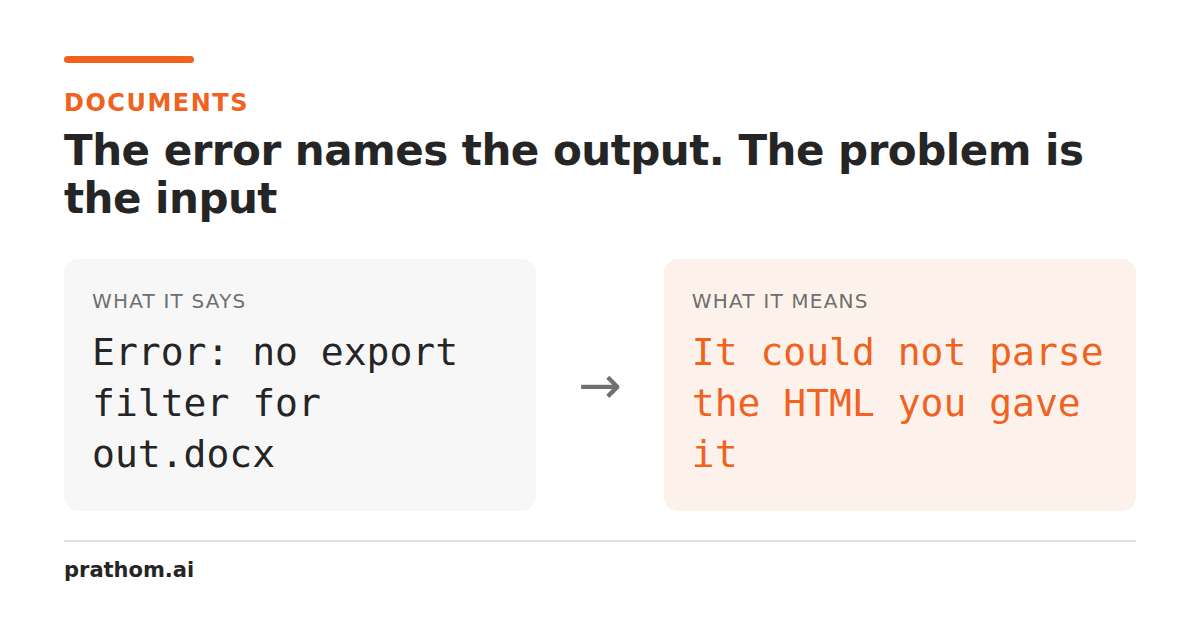
Error: no export filter for /path/to/page.docx found, aborting.
The file it names is the output, which does not exist yet. Nothing is wrong with it, because it is not a thing. The problem is entirely on the input side, and the message gives you no hint of that.
What is really going on
LibreOffice is several applications sharing a core: Writer for text documents, Calc for spreadsheets, Impress for presentations, Draw for drawings — and Writer/Web, a separate mode for HTML.
When you open an HTML file, LibreOffice loads it into Writer/Web, not Writer. That is the right decision for editing a web page: Writer/Web has web-oriented behavior and a different set of export filters.
Writer/Web's filter list does not include a plain docxentry. So when the
command-line converter looks up "the docx filter for this document type", it finds
nothing, and reports that it has no export filter — for the output file, which is the
only name it has to hand at that point.
The fix
Name the filter explicitly rather than relying on the extension:
soffice --headless --convert-to 'docx:MS Word 2007 XML' --outdir . page.html
This works. The document is still loaded as Writer/Web; you have simply told the converter which specific filter to use instead of asking it to guess from a list that does not contain one.
The same trap in the other direction
The reverse conversion has the same shape. Going from a Writer document to HTML:
soffice --headless --convert-to html --outdir . document.docx        # may fail
soffice --headless --convert-to 'html:HTML (StarWriter)' --outdir . document.docx   # works
There are several HTML export filters — one for Writer, one for Calc, one for Impress — and the bare extension is ambiguous in a way the error message never explains.
Plain text has the same issue with a further twist, because the text filter also takes an encoding parameter:
soffice --headless --convert-to 'txt:Text (encoded):UTF8' --outdir . document.docx
Without the encoding, you may get the system's default codepage, which is how a document full of accented characters comes out as mojibake from a conversion that reported success.
Finding the filter name you need
The names are internal identifiers rather than anything discoverable in the interface. The reliable way to find one is to look at the filter list LibreOffice ships:
grep -ro 'MS Word 2007 XML' /usr/lib/libreoffice/share/registry/ | head -1
Or, more practically, open a file of the source type in the GUI and look at what the Save As dialog offers — the visible names correspond closely to the filter names.
Why this matters beyond one error message
Batch document conversion is one of the most common automation tasks there is, and
this failure mode has a specific nasty property: it is input-dependent. A script
that converts a thousand DOCX files to PDF works perfectly. The same script fed one
HTML file that somebody renamed to .docxfails on that file alone, with an error
naming a file that was never created.
If you are building a pipeline, two habits make this survivable. Name the filter explicitly for every conversion rather than relying on extension inference, so the behavior does not change based on what the input turned out to be. And check that the output file exists after the command returns, because LibreOffice's exit code is not always non-zero when a conversion fails.
The general lesson is one that applies well beyond LibreOffice: when an error names a file that does not exist, the thing that failed is usually the step before the one that would have created it.
A wider point about error messages
This particular message is a good specimen of a category worth recognizing, because once you see the shape you start spotting it everywhere.
An operation has several stages. A late stage discovers that an early stage produced something unusable. The late stage reports the failure, because it is where the failure was noticed — and it reports it in terms of its own concerns, which are the output. The user reads the message, goes to look at the output, and finds nothing to look at.
The same pattern produces "cannot write to file" when the real problem is that the directory does not exist, "invalid image" when the real problem is that the download was truncated, and "unexpected end of JSON input" when the real problem is that the server returned an HTML error page.
The habit that helps is to read an error message as a description of where the process stopped, not of what was wrong. Those are frequently different places, and the gap between them is where the time goes.
If you are debugging a conversion that fails
Three checks, in order, resolve most of these quickly.
Confirm what the input actually is, rather than what its extension says. file input.docx reads the bytes and will tell you if it is really HTML, or a ZIP, or an
old binary .doc. Renamed files are extremely common in any pipeline that accepts
uploads.
Run the conversion without --headlessonce, on a machine with a display. The
GUI often shows a more specific dialog than the command line reports.
Convert in two steps. If HTML to DOCX is failing, try HTML to ODT and then ODT to DOCX. Splitting the conversion tells you which half is refusing, and sometimes the two-step route simply works because it goes through a document type with a fuller set of filters.