Remove an Image Background with AI
Remove the background from a portrait, product photo, or graphic with a controlled AI image workflow. The studio is designed to make the important choices visible: choose the source, send it to the configured GPU workspace, inspect the edge quality, and download only when the cutout is good enough for your next step. Hair, transparent objects, and soft shadows are where an automatic mask is least reliable, so the edge review is the step worth spending time on.

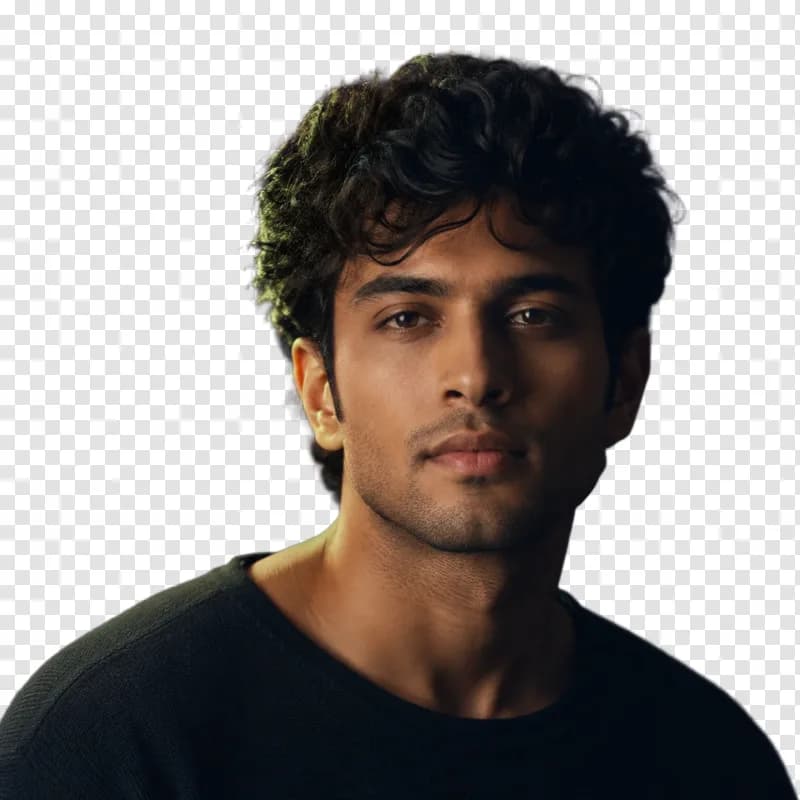
A real run of this tool, not a mock-up. Your result will differ.
Use this without the search next time. Prathom Workbench puts Prathom's tools in your toolbar.
Add to Chrome — freeDrop an image here, or click to browse
Up to 25 MB. Uploaded temporarily, deleted after processing.
What it does
- Subject-aware background removal
- Transparent PNG output
- GPU workflow status and result download
- Clear processing and review state
How to use AI Background Remover
- 1
Choose a source image
Use a sharp photo with the subject separated from the background and enough resolution for the intended output.
- 2
Start the cutout workflow
Send the image to the configured GPU workspace and wait for the result instead of leaving the page while it renders.
- 3
Inspect the edges
Check hair, fingers, thin product parts, and soft shadows against a contrasting background before downloading.
How it works
A segmentation model reads the image and produces a mask: a grayscale map the same size as your photograph, where each value says how much of that pixel belongs to the subject.
That mask is then inverted and attached to the original image as an alpha channel. The color pixels are unchanged — every one of them is the pixel your camera recorded. What has been added is a per-pixel opacity, so the background becomes transparent rather than being painted over.
This is why the output has to be a PNG or another format that carries alpha. Save the result as JPEG and the transparency is discarded, usually replaced with black or white, which is the single most common thing people report as the tool having failed.
The mask is not binary, and that is the point
A pixel is rarely wholly subject or wholly background. Along the edge of an out-of-focus arm, through a wisp of hair, at the boundary of a glass, the camera recorded a blend of both, and the correct answer is a partial value.
A mask that only ever says yes or no produces the cut-out look: a hard, slightly jagged boundary that reads as pasted on. A mask with intermediate values lets the edge stay soft where the photograph was soft, which is what makes a result look like the subject was photographed against the new background rather than stuck onto it.
Where this gets difficult is fine structure. Individual strands of hair, fur, netting, and foliage are thin enough that most pixels along them are partial, and the model has to be right about a great many small decisions in a row. Some of them will be wrong.
The photographs that separate cleanly
Contrast between subject and background is what the model is actually reading, so the useful predictor is not how simple the background looks but how different it is from the subject.
A dark jacket against a dark sofa is hard. A dark jacket against a pale wall is easy. A blonde head against a cream curtain is hard in exactly the place that matters most.
Depth of field helps a great deal. A background that was already out of focus gives a clear signal about what is not the subject, which is why portraits shot at a wide aperture separate better than a snapshot where everything is sharp.
Motion blur hurts, semi-transparent objects hurt, and reflections in glass or water are genuinely ambiguous — the model has to decide whether a reflection belongs to the subject, and either answer is defensible.
Checking the result properly
View the cut-out against a background that contrasts with the edge you are worried about. Checking a dark-haired subject on a white canvas hides every problem in the hair; put it on mid-gray and then on a color close to the original background, and the leftover fringing appears.
Zoom to full resolution along the boundary. Look for a thin halo of the old background color, which is the most common artifact and is very visible once the subject is placed on something different.
Then check the interior. Gaps between an arm and a body, the space inside a handle, the holes in a chair back — these should be transparent and are often the first thing a model misses.
Using the result
For a product listing, most marketplaces want a solid background rather than a transparent one, so composite the cut-out onto white afterwards rather than uploading the alpha version.
For a design tool, keep the PNG with its alpha and composite there, so you can change your mind about the background without re-running anything.
Either way, keep the original. The cut-out discards the background permanently, and the only route back is the file you started with.
Examples
Product on a light sweep
The workflow should preserve laces and curved edges while separating the shoe from the continuous studio sweep.
Portrait for a profile card
A contrasting preview makes small hair halos and background fragments easier to spot before the image is reused.
Frequently asked questions
Does this remove every background perfectly?
No image segmentation model is perfect on every edge. Hair, glass, smoke, shadows, low contrast clothing, and objects that match the background need review. The studio makes the result easy to download, but it does not pretend that an automatic mask is proof of professional clipping quality.
Is the image processed in the browser?
No. This is a GPU workflow, so the source image is sent to the ComfyUI host configured by Prathom when you start the job. The result is temporary and the public page does not expose the GPU host or its workflow internals.
Can I use the result for a product listing?
Yes, after checking the cutout at full size and confirming that the product itself was not changed. Keep the original file and compare logos, labels, edges, and colors before using an AI-generated or AI-processed asset in a marketplace listing.
Is the AI Background Remover tool free, and do I need an account?
Yes, free and without registration. Everyone is served the same ai background remover workflow, at the same quality, with no watermark and no trial that runs out. An upload can be up to 25 MB. The one thing worth knowing is that the result is temporary by design, so download it rather than bookmarking the job and returning tomorrow.