Converting a PDF to Grayscale Made It Bigger
Removing color sounds like removing data, so grayscale gets used as a compression step. On a document that was already black text on white, the conversion made the file larger — and the reason it did is the reason it sometimes makes a scan dramatically smaller.
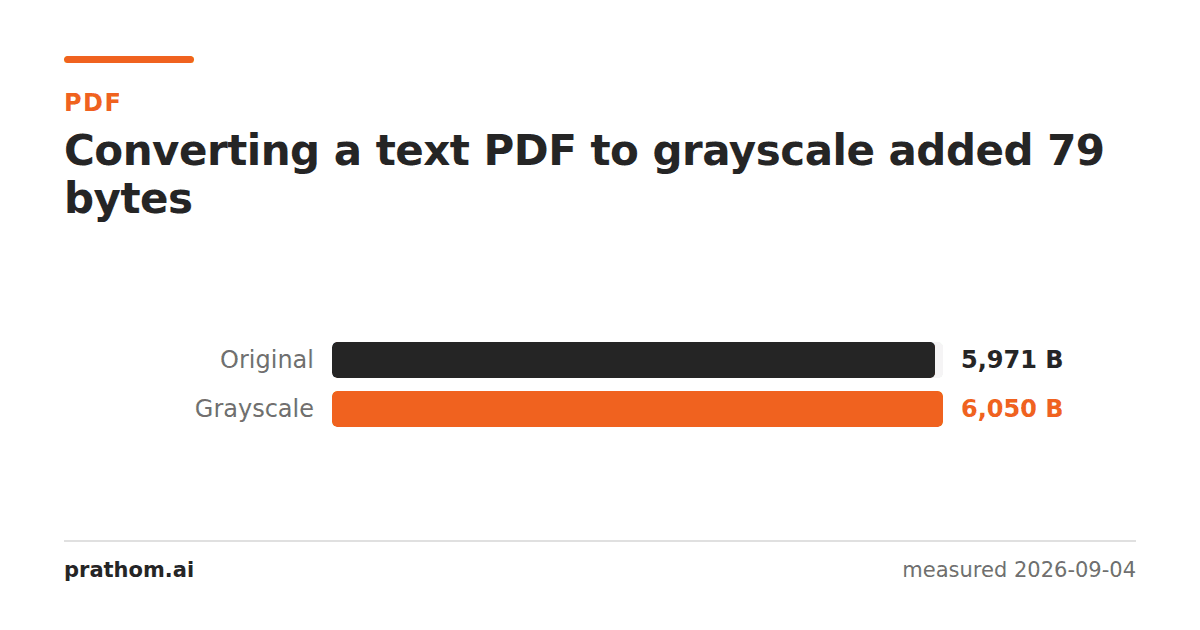
An eight-page text PDF, converted to grayscale:
| size | |
|---|---|
| original | 5,971 B |
| grayscale | 6,050 B |
Seventy-nine bytes larger, for a document whose pages were black type on white paper before the conversion and after it.
Why it grew
The conversion did not find color and throw it away, because there was none to find. What it did was rewrite the document through a converter, and the output carries the apparatus of a color-managed file: an explicit grayscale color space, declared where the original had simply used the default.
The original said, in effect, "black". The grayscale version says "black, in DeviceGray, and here is the entry describing that". That entry is small. It is also more than nothing, and there was nothing to offset it.
This is the general shape of it: a conversion that removes something you do not have still costs what the conversion costs. Re-encoding is never free, and when the saving is zero the overhead is all that is left.
When grayscale genuinely helps
The case grayscale is famous for is the scanned document, and there it works enormously — but for a reason that has little to do with the word "grayscale".
A color scan stores three values per pixel. A grayscale scan stores one. On a page of scanned text that is a two-thirds reduction before any compression runs, and the compressors do better on the grayscale version too, because the color noise that a scanner sprinkles across white paper is exactly the kind of detail that makes an image expensive to store. Take the color away and much of the noise goes with it.
So the rule is not "grayscale makes PDFs smaller". It is:
- Scanned or photographic pages — grayscale usually saves a lot, because the pages are images and images have three channels.
- Text pages generated from a document — grayscale saves nothing, because the pages are instructions rather than pixels, and there were no channels to drop.
The measurement above is the second case, and the file grew.
What to reach for instead
If the goal is a smaller file and the pages are text, grayscale is the wrong lever. There is very little to remove, which is also why text PDFs are small to begin with — this one is under six kilobytes for eight pages.
If the goal is a smaller file and the pages are scans, grayscale helps, but the PDF compressorwill usually help more and includes the same effect among the things it does. What each of its presets removes, and what each costs in rendered quality, is measured here. When there is a hard limit to hit — a form that will not accept more than a fixed size — compress to sizeaims at the number directly.
Check which kind of document you have
The prediction depends entirely on whether the pages are text or images, and there is a one-line test:
pdftotext report.pdf - | wc -c
A number in the thousands means a text document, and grayscale will save you nothing. A number near zero means the pages are images — a scan, or something that has been flattened— and grayscale is worth trying.
What it costs when it does work
On a scanned document the saving is large, and it is not free: color is gone permanently. That matters more often than people expect — a form filled in with blue ink, a document with highlighted passages, a chart with a color-coded key, a signature that was demonstrably not printed. All of those become indistinguishable shades.
So the order is: decide whether the color carries information, then convert. Not the other way round, because there is no way back.
The practical version
Use grayscale PDFwhen you want a grayscale document: for printing on a monochrome press, for consistency, or because color in the original is a distraction. Those are good reasons and the tool does exactly that.
Do not use it as a compression step without checking, and check by looking at the size afterwards. On the right input it is a large win. On a text document it is seventy-nine bytes in the wrong direction.