How to Check Whether a Conversion Actually Kept Your File
Every conversion tool reports success. None of them report what they threw away, because from the tool's point of view nothing went wrong — it did the conversion it was asked for, and the things the destination format cannot hold were discarded before compression even started. Here is how to find out what you actually got.
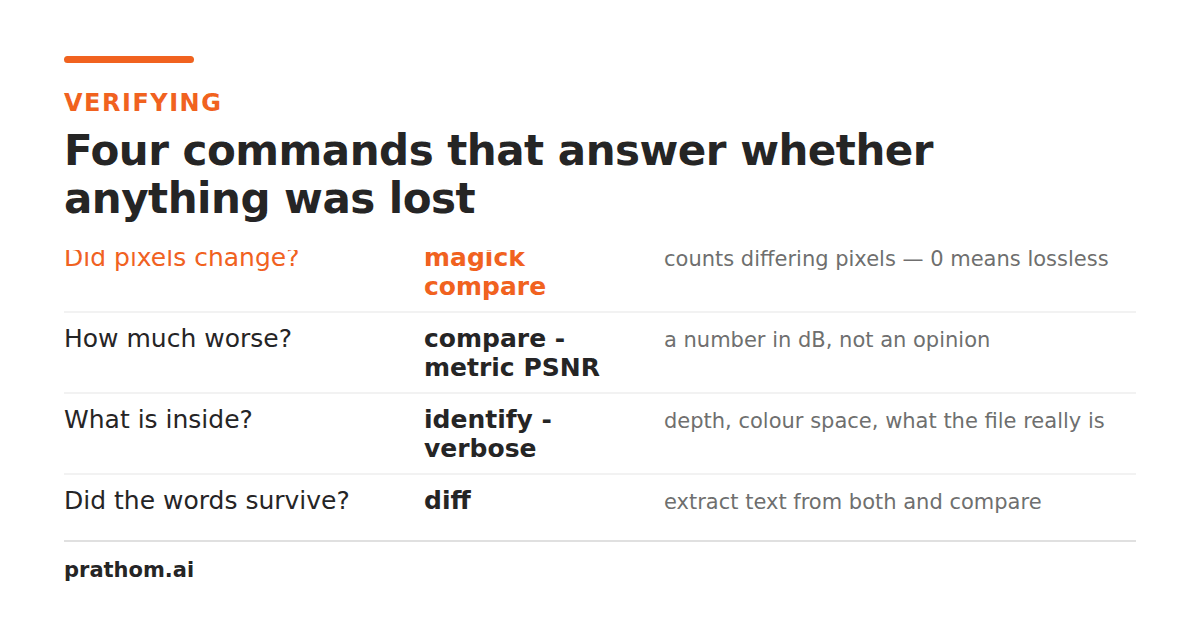
A conversion can fail in four different ways, and only one of them produces an error message. The other three produce a valid file that is missing something, and the checks for each are different.
1. Did the pixels change?
For images, this is a single command:
magick original.png -define webp:lossless=true out.webp
magick out.webp roundtrip.png
magick compare -metric AE original.png roundtrip.png null:
AEis the count of pixels that differ at all. 0means the conversion was
genuinely lossless. Anything else is a number, and the number tells you which
problem you have:
- A small number — usually edges. Check for a palette limit or a transparency change. GIF changed 2,484 pixels on an anti-aliased edgefor exactly this reason.
- Your entire pixel count — something systematic. Most often bit depth: a 16-bit source through an 8-bit format changes every pixelwhile looking identical.
- Most but not all — ordinary lossy compression.
If you want a sense of how visible the difference is rather than how many pixels
moved, use PSNRinstead. Above roughly 45 dB is generally indistinguishable at
normal viewing size; below 40 dB you will see it on flat areas and edges.
2. Did the file keep its structure?
Pixels are only the question for images. For documents, the equivalent is whether the structure survived, and the check is to extract and compare:
pdftotext original.pdf - | wc -w
pdftotext converted.pdf - | wc -w
A large drop means text became images, or the text layer was lost. A count of zero from a PDF that visibly contains words means it is a scan with no text layer at all — which is the single most common surprise in PDF workflows, and the reason OCRexists as a separate step.
For spreadsheets and CSVs, the check is a diff of the round trip:
diff <(sort original.csv) <(sort roundtripped.csv)
Run it with your most awkward rows included — leading zeros and anything that looks like a formulaare where the losses are.
3. Did it keep what you cannot see?
Some of what a file carries is invisible until it matters.
magick identify -verbose image.jpg | head -40
Look for the color profile, the orientation, and the bit depth. An image that looks right and prints wrong has usually lost its profile. An image that appears sideways in one program and upright in another has an orientation tag that one of them is honoring.
For PDFs, pdfimages -listreports what happened to embedded images, which is what
compression presets change. Note that this tells you about resolution and not about
quality— a preset can keep every pixel and still
make the page look worse.
4. Does it open where it needs to?
The last check is the one that cannot be automated and catches the most in practice: open the converted file in the program that will actually receive it.
A file that opens correctly in the tool that produced it proves very little. Formats have optional features, and support for them is uneven — a PDF using a transparency group, a DOCX using a newer schema, a WebP in an email client. The receiving end is the only end whose opinion counts.
A practical order
For anything routine, two of these are enough:
- Convert one representative file, not the whole batch.
- Run the round-trip check for the thing you most care about keeping.
- Open the result where it is going.
- Then run the batch.
The reason to do it on one file first is that conversions are cheap to repeat and expensive to undo. A batch that ran overnight and silently flattened four thousand 16-bit scans to 8-bit is recoverable only if you still have the originals — which is the other half of the advice, and the more important half.
Keep the source until you have verified the output. Every check above tells you something useful, and none of them are worth as much as still having the file you started with.
Why tools cannot warn you
It is reasonable to ask why the conversion tool does not simply say "this format cannot hold your alpha channel". Some do, and most do not, and the reason is structural rather than lazy.
By the time a converter is writing the output, it usually holds an in-memory image that has already been normalized — the alpha compositing, the bit-depth reduction and the color-space conversion happened while decoding, or in a generic pipeline stage, before the output format was even consulted. The encoder receives data it can represent, because the pipeline made sure of that. There is no point at which anything holds both the original and the knowledge of what was dropped.
That is also why the losses are so consistent across different tools: they are a property of the format pair, not of the software. Two different converters will discard the same things, which is at least predictable.
The one habit worth forming
Verify on the file you care about most, not on a convenient sample. The photograph you tested with probably has no transparency, no 16-bit depth and no embedded profile — so it will pass every check and tell you nothing about the archive you are about to convert. Pick the awkward file deliberately: the one with the alpha channel, the one from the scanner, the one somebody complained about last time.